1. Choose its access
In Integrations → AI access, create a token. Select projects, data permissions and an expiry. Include Pages for URL-level insights. Owners and admins manage access.
SEOcc + AI · From evidence to action
Your AI can write a better page when it understands why that page needs work. SEO Control Center brings search performance, audits and opportunities together—so you can ask better questions, make focused changes in your CMS and measure what happens next.
Real SEOcc interface screenshots. Fictional .test domains, simulated metrics and illustrative AI answers.
Search data, page issues and business outcomes.
Priorities, editing briefs and concrete suggestions.
Apply changes in your CMS. Follow up in SEOcc.
01 · Stay inside SEOcc
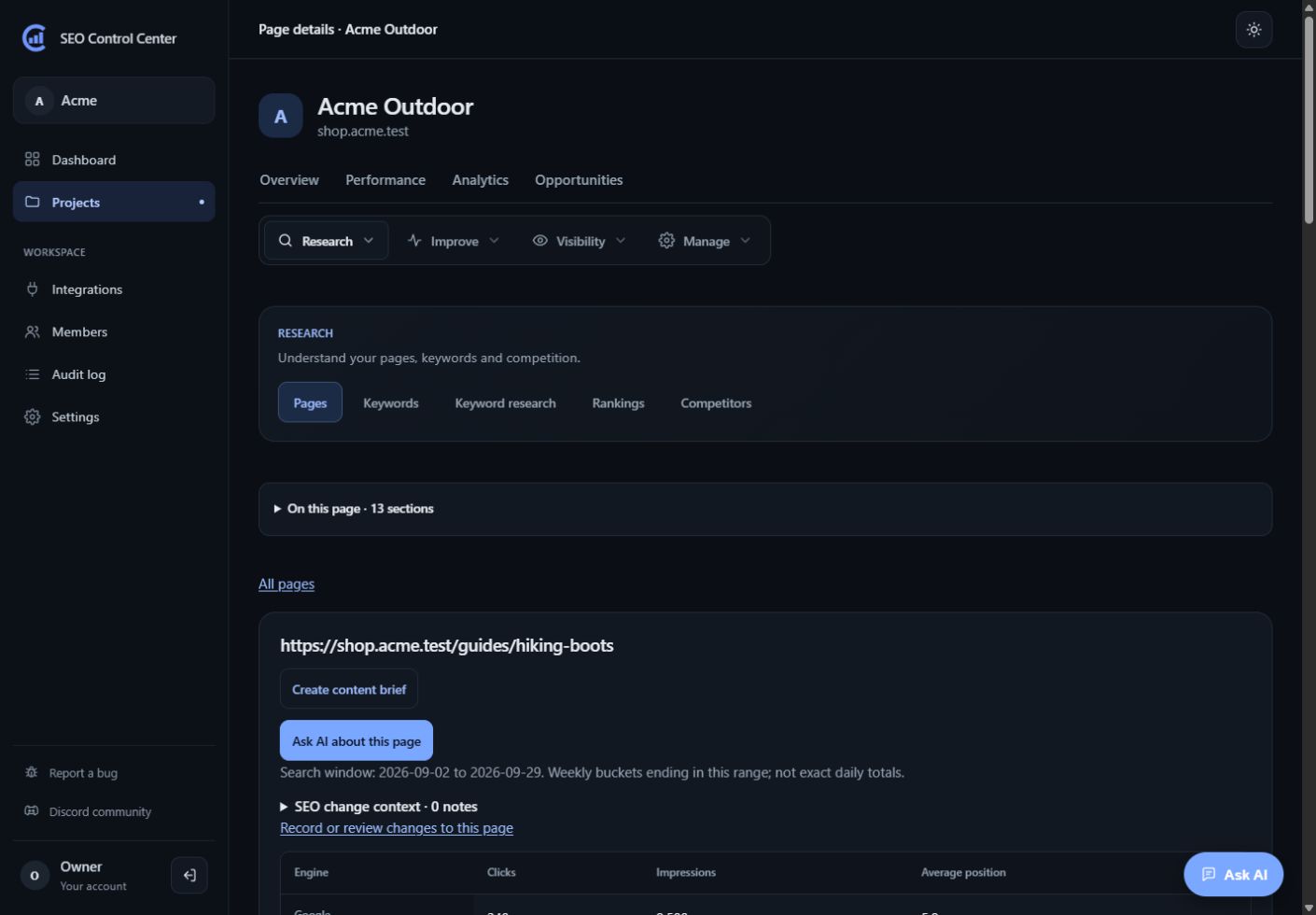
Open Ask AI from the bottom right of a page, or ask about a specific opportunity. The chat knows your current project and reads stored evidence to help explain what deserves attention.
Ask why a guide lost clicks, which pages need attention, or how to turn an audit finding into an editing plan. The chat shows what it read, so you can follow its reasoning back to the data.
Try asking
What should I improve on the hiking boots guide? Check its queries and audit findings, suggest exact edits, and explain any missing evidence.
Set up your own Claude or OpenAI API key and workspace budgets. Ask AI can update opportunity status and start a follow-up audit after confirmation; it does not edit your CMS.
Read the Ask AI guide →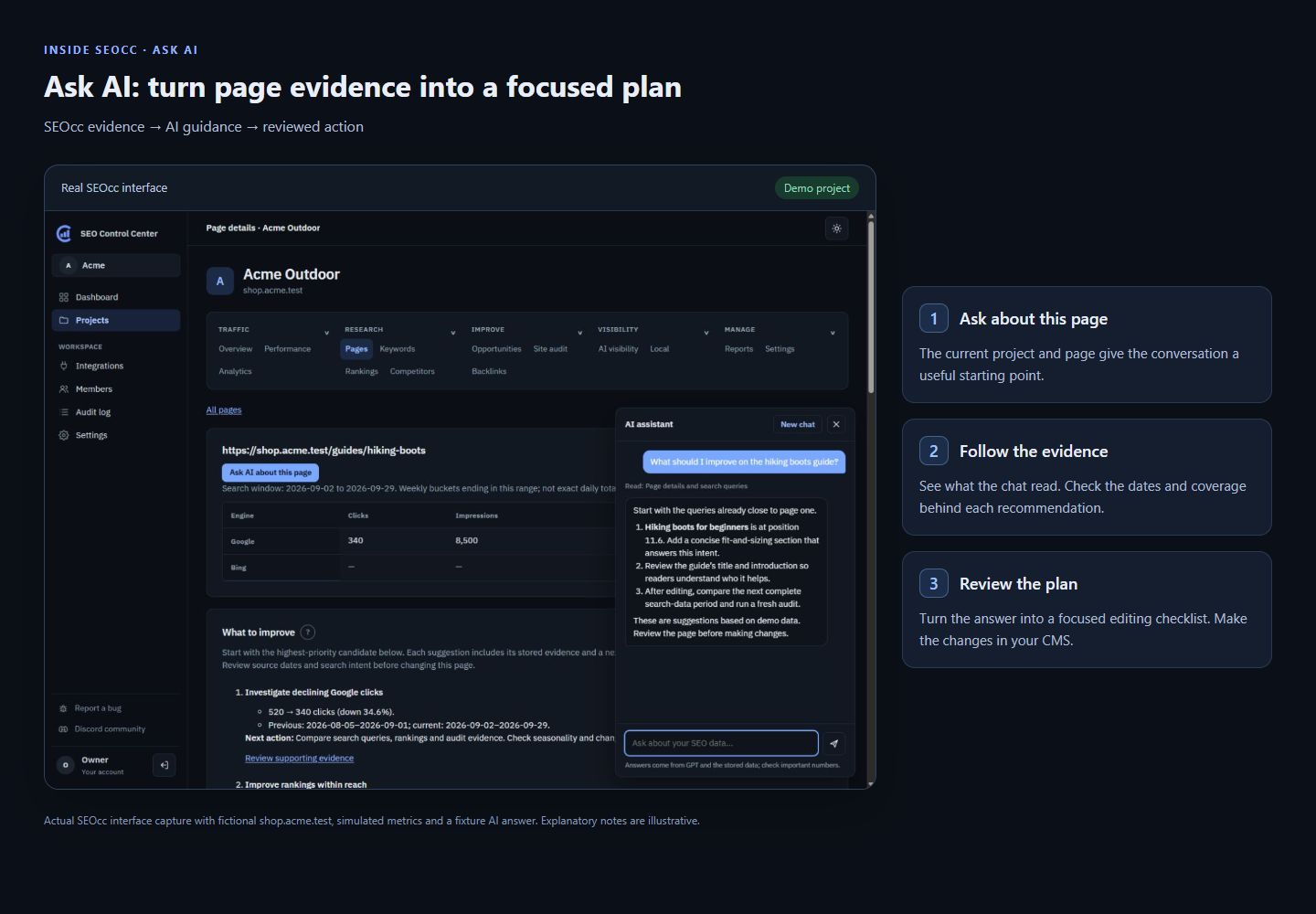
02 · Bring SEOcc into your AI client
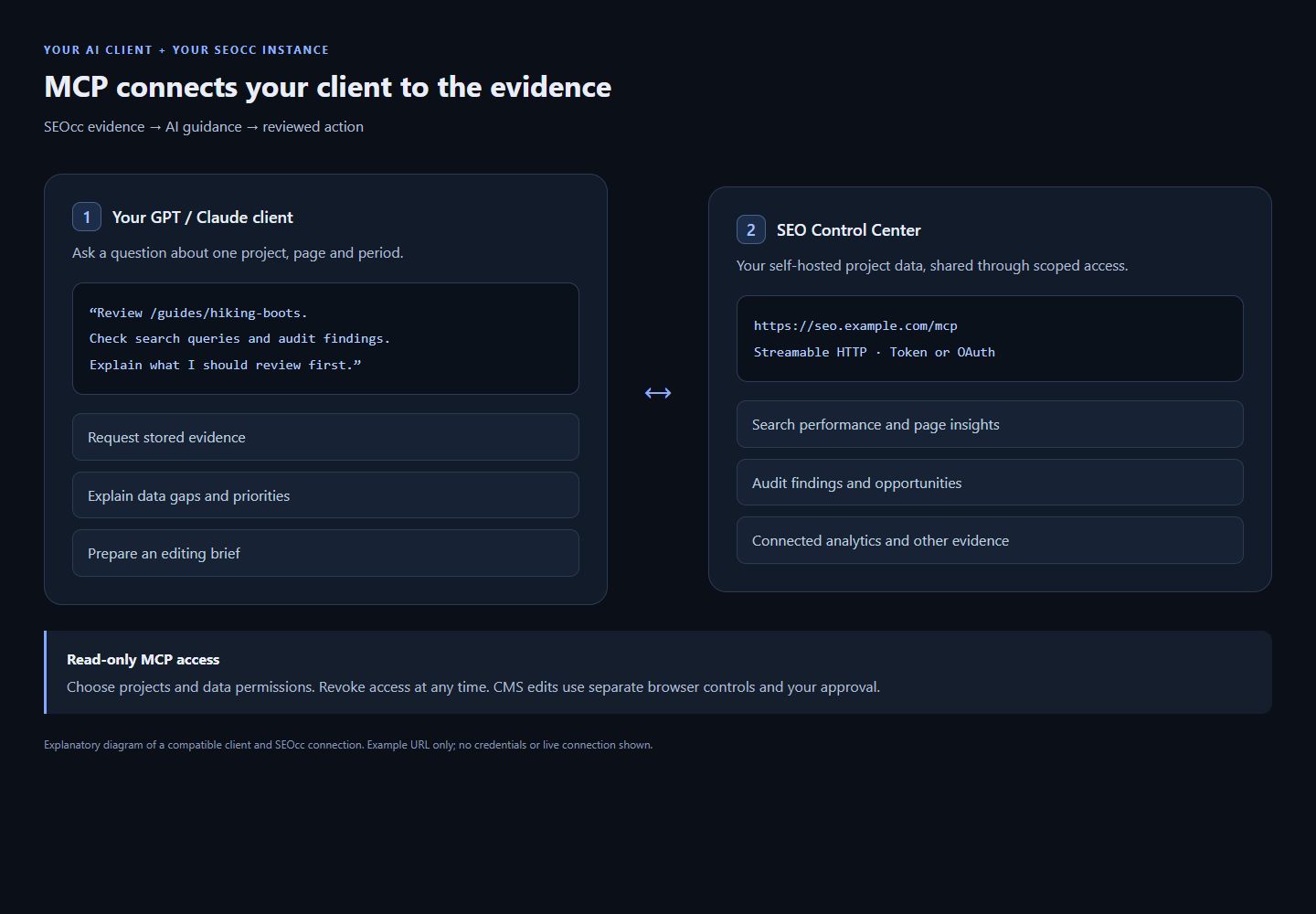
The Model Context Protocol lets a compatible AI client request your SEOcc data directly. Instead of copying a report into a chat, you can ask the assistant to inspect the project, then drill into the pages behind the numbers.
MCP reads SEOcc’s stored evidence. A client needs its own browser-control capability, your signed-in CMS session and your permission to make website changes. Connecting MCP alone does not give it CMS access.
Follow the MCP connection guide →A smarter starting point · Free skill on GitHub
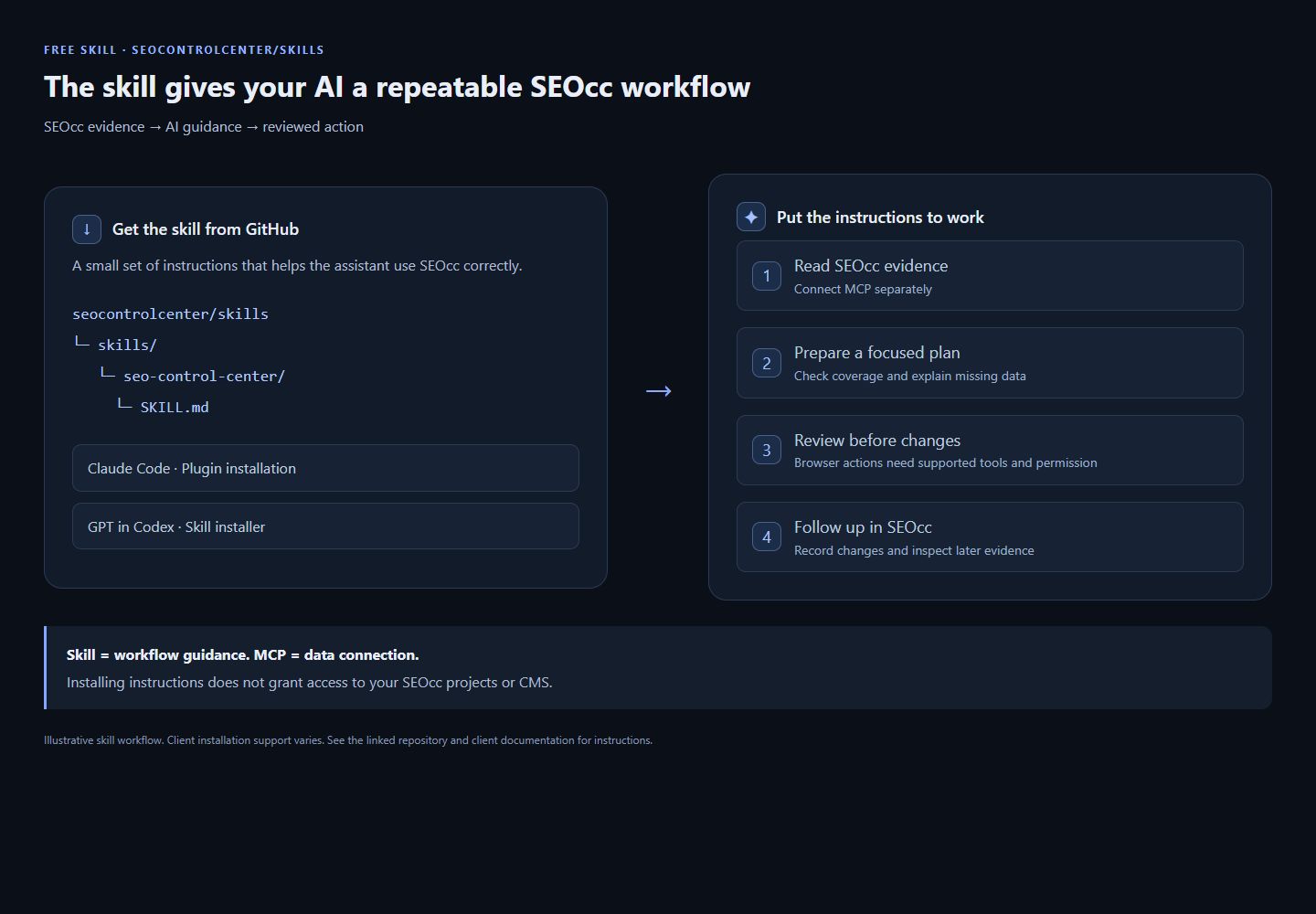
Give your assistant a repeatable SEO workflow: read the evidence, choose a focused task and follow up on the change.
The SEO Control Center skill adds practical guidance for using MCP and the dashboard together. Connect your own SEOcc instance separately to give it access to your project data.
Explore the skill on GitHubRun these two commands in Claude Code:
/plugin marketplace add seocontrolcenter/skills
/plugin install seo-control-center@seocontrolcenter-skillsAsk Codex’s skill installer to add the skill from GitHub:
Use $skill-installer to install the seo-control-center skill from https://github.com/seocontrolcenter/skills/tree/main/skills/seo-control-center
Use a client that supports local Agent Skills. For other GPT clients, follow their skill-import instructions; installation support varies.
OpenAI skill documentation →“Use the SEO Control Center skill to review my project. Check data coverage and give me three prioritized next actions.”
Set up the data connection →03 · A practical WordPress example
Imagine you run shop.acme.test. Your hiking boots guide gets impressions, but a useful query is still near page two. A browser-capable AI client can connect the SEOcc evidence to the editor you already use.
Ask the client to read the guide’s page details through MCP, compare complete periods and check query and audit evidence. Have it explain the opportunity before drafting.
Open the guide in your signed-in WordPress editor. Tell the client which tab and page to inspect. It can compare the current copy with the search intent and proposed fix plan.
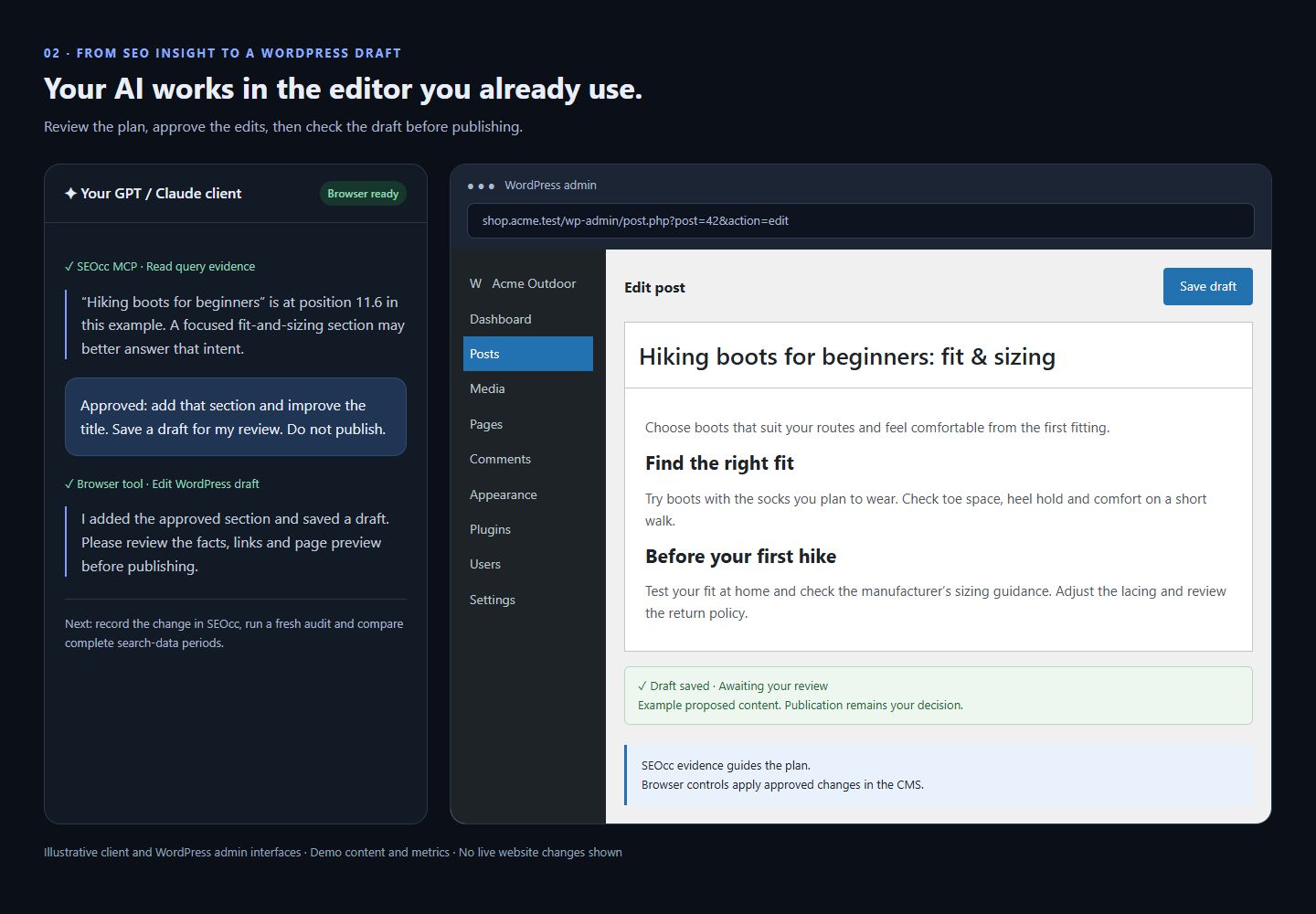
Ask for a clearer title, an improved introduction and a useful fit-and-sizing section. With your permission and supported browser controls, the client can enter edits and save a draft for review.
Check facts, tone, links and the preview. Approve publication separately. Record the change in SEOcc, run a fresh audit and compare the next complete search-data period.
The same pattern works in other CMS editors—such as Shopify, Drupal or a custom admin—when the client can operate that interface. SEOcc does not require a WordPress plugin for this workflow. Client capabilities and CMS field access vary.
A ready-to-use browser prompt
Use SEOcc’s MCP data for shop.acme.test to review /guides/hiking-boots. Check queries, coverage and audit issues first. Then inspect the WordPress editor tab I’m logged into. Propose a focused update, explain the evidence, and wait for my approval before entering edits. Save an approved draft; ask again before publishing.
The WordPress workflow, illustrated
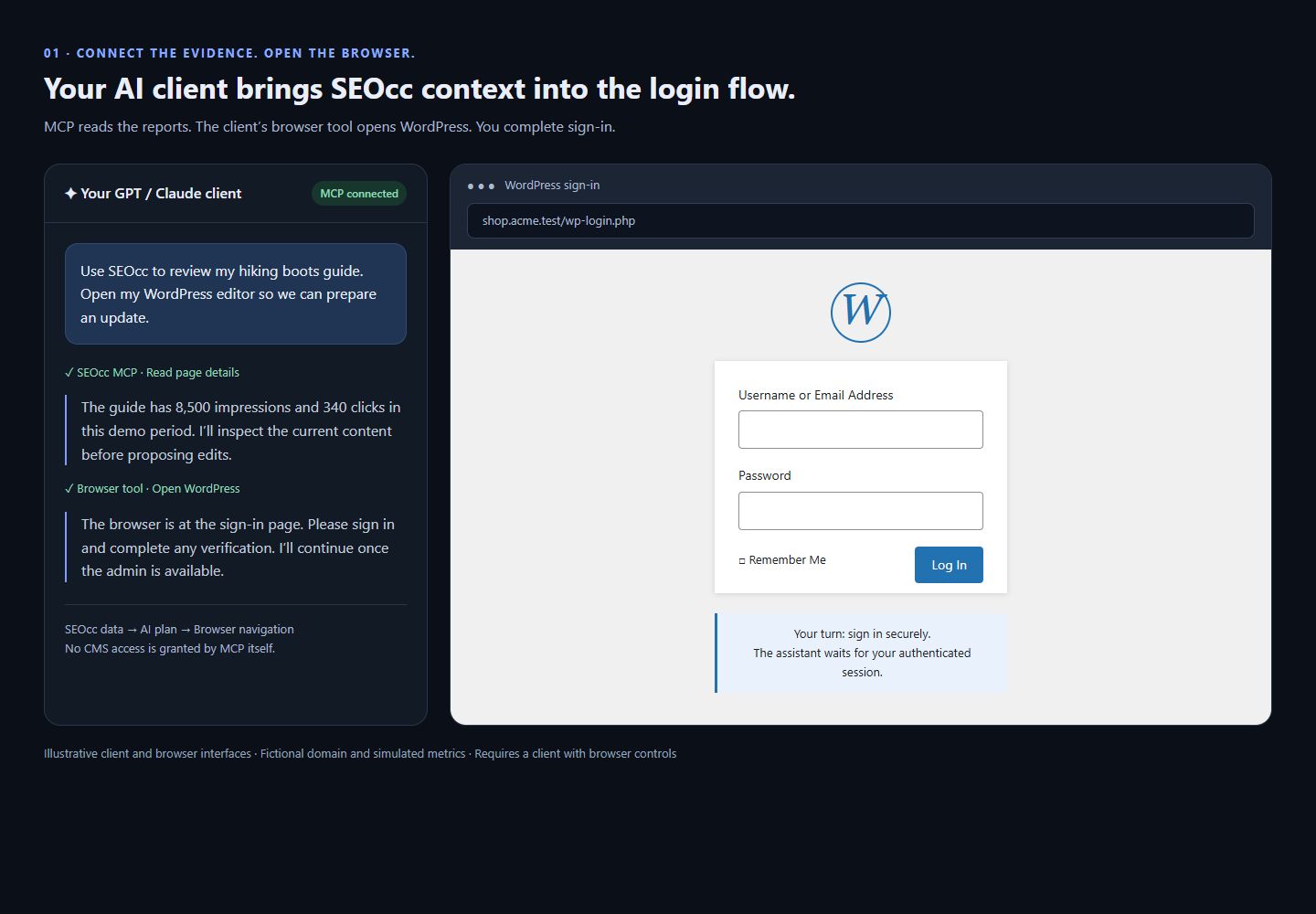
Your GPT or Claude client uses MCP for SEOcc evidence and its browser controls for WordPress. It can open the login flow; you complete sign-in or provide an already signed-in session.
The assistant reads page insights through MCP, navigates to your CMS and waits for you to complete authentication. MCP itself does not log into WordPress.
With browser access and your approval, the client edits the post and saves a draft. Review the preview before publishing, then track the change in SEOcc.
Choose a starting point
These are example prompts, not preconfigured automations. Start with the sources you have connected and ask the assistant to distinguish observations from possible explanations.
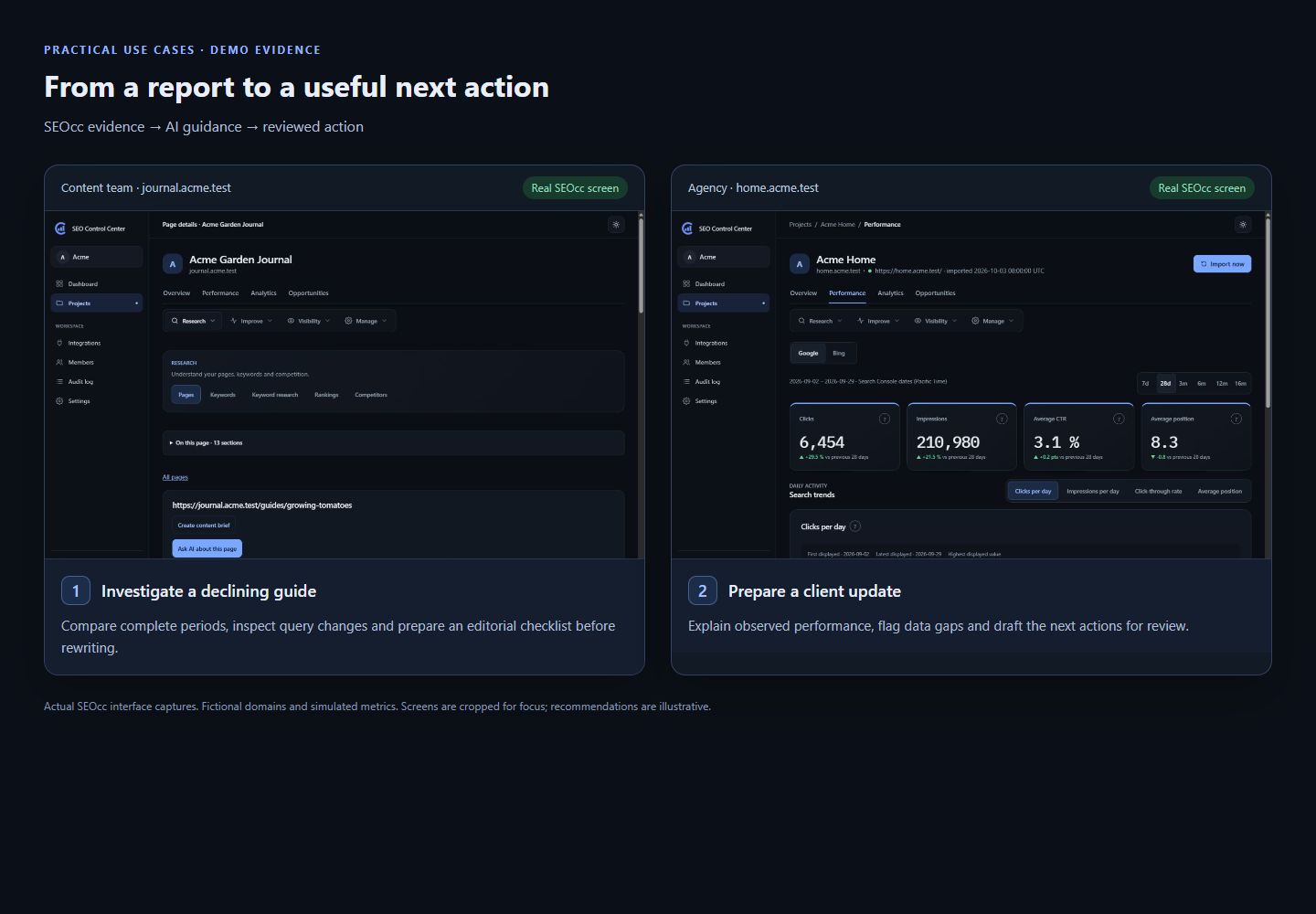
journal.acme.test · Demo
Compare the tomato guide’s last two complete periods. Identify which queries lost clicks and prepare an editing checklist. Check the current CMS copy before recommending a rewrite.
The benefit: An editorial brief that targets the observed decline.
shop.acme.test · Demo
Review the daypack category’s queries, internal links and audit findings. Suggest a title and buying-guide outline. Prepare a CMS draft after I approve the plan.
The benefit: A focused category update based on existing search demand.
home.acme.test · Demo
Group the latest audit issues by affected URL. Separate content-field fixes from template or developer work, and give me a prioritized fix plan.
The benefit: A clear division between editor tasks and technical work.
home.acme.test · Demo
Summarize this month’s search performance and, where available, GA4 landing-page outcomes. Explain missing data and propose three next actions. Draft the update for my review.
The benefit: A readable report connected to the next week’s work.
Why SEOcc is powerful
The advantage is the connection between signals: what people search for, which page they find, what needs fixing and what happens after the click. AI helps you explore that picture in plain language.
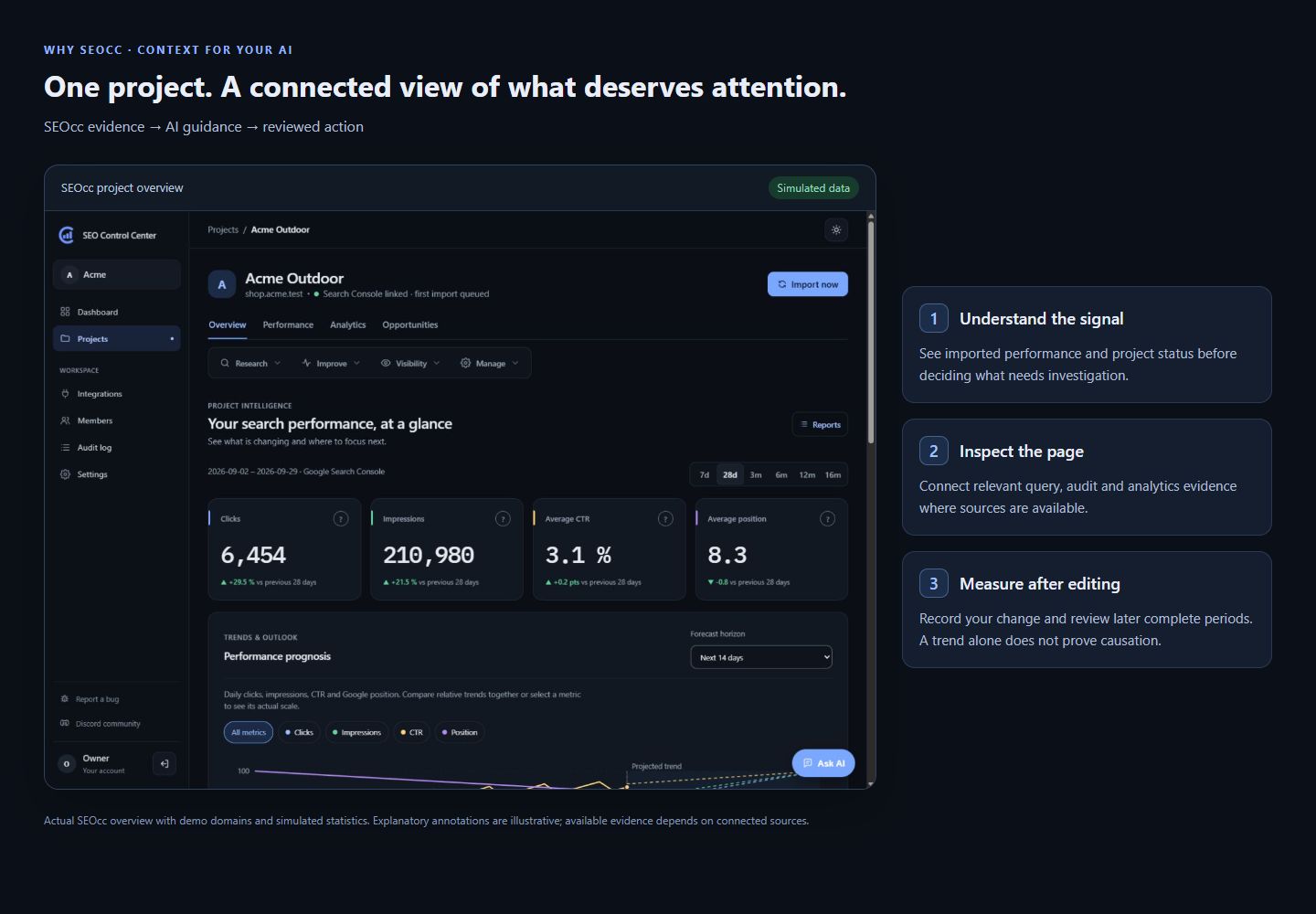
Bring search, rankings, audits, links and analytics evidence into the same project. Ask AI to connect relevant signals instead of treating a single number as the whole story.
Use Ask AI in the dashboard or MCP in your preferred compatible client. Move from a question to a page-specific brief without assembling screenshots and spreadsheets by hand.
SEOcc supplies the evidence. Your team or a permitted browser-capable client works in the editor. The approach can follow you across different websites and publishing tools.
Run SEOcc on your own server, separate projects and workspaces, and control AI permissions and provider budgets. External AI requests still share the selected data with the provider you choose.
Keep change notes, revisit page insights and verify technical fixes with another audit. Compare complete periods; improvements in clicks or revenue do not by themselves prove a change caused them.
Good to know
AI can help investigate, prioritize, draft and explain many SEO tasks. Results depend on available evidence, the AI client and your website. Review recommendations and approve changes. SEOcc does not promise rankings, traffic or revenue gains.
No. SEOcc’s MCP connection is read-only. Website edits happen separately through your team or a client with permitted browser or CMS access. Ask AI inside SEOcc has its own confirmation flow for supported opportunity and audit actions.
A SEOcc installation and project with relevant imported data. For built-in chat, configure a supported provider API key and budgets. For an external client, enable its MCP connection. CMS editing additionally requires a client with browser controls and access to your editor. Provider usage and optional data lookups are billed separately.
Ask the assistant to check dates, import coverage and whether results are sampled before interpreting a trend. Missing analytics is not zero. Narrow the question to a project, URL and period, then verify important figures in the underlying dashboard.
Start with one project, one page and one useful question.