Downloads & installation

Your SEO workspace.
One guided setup.

Create a subdomain, upload one installer file and follow the steps in your browser. Keep the folder cPanel suggests. The installer handles the application files.

Use your purchase licence key in the customer center to access your eligible downloads.

Installing for the first time?

Choose Download guided installer in the customer center. Copy its separate setup code before leaving.

Already using SEOcc?

Open System → Updates in your workspace. Back up first, then review and install your eligible update.

Read the update guide →

Before you begin

A new subdomain.
Your existing cPanel account.

Use a dedicated subdomain such as seo.example.com, with an empty folder and a new database. Keep your main website in its own folder.

  • PHP 8.5+ with cURL, ZIP, sodium, PDO MySQL and the application’s required extensions.
  • MySQL 8+ or MariaDB 10.6+, HTTPS and access to Cron Jobs.
  • Apache or compatible LiteSpeed with .htaccess and mod_rewrite enabled. The installer checks file protection.
  • Space and connections: at least 400 MB free temporary space, private PHP temporary storage and outbound HTTPS.

This walkthrough supports installation at a subdomain’s root address. A website folder such as example.com/seocc is not supported. See all hosting requirements →

Keep this guide open beside cPanel

Six steps, with pictures.

The images are AI-generated cPanel illustrations with fictional details. Your host’s theme and labels may differ; follow the written steps and the values shown in your account.

01

cPanel → Domains

Create your subdomain

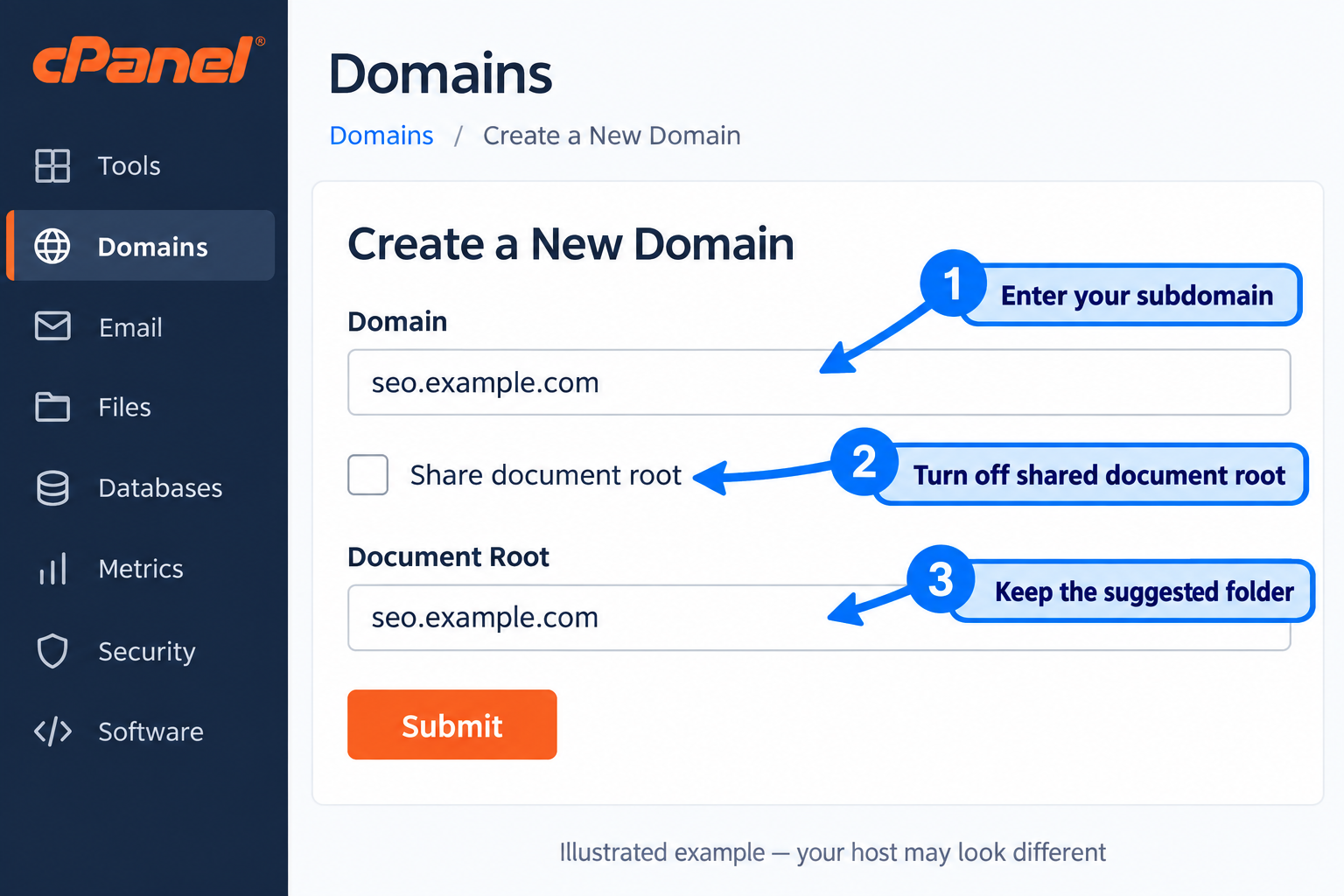
  1. Open Domains → Create a New Domain. Older cPanel themes may have a separate Subdomains tool.
  2. Enter a name such as seo.example.com, using a domain you own.
  3. If you see Share document root, turn it off so SEOcc has its own folder.
  4. Keep the suggested Document Root and click Submit. Note the folder shown beside your new subdomain.

That folder is your installation location. You won’t change it to another application path later.

My DNS is managed elsewhere

At your DNS provider, add the record for your chosen subdomain pointing to the hosting server, following your host’s instructions. Wait until the address resolves before running the installer or requesting SSL.
Official cPanel domain guidance ↗
Illustrated cPanel domain form showing a dedicated seo.example.com subdomain and suggested document root
Turn off a shared document root and keep cPanel’s suggested folder. Its name and location depend on your host.
02

cPanel → MultiPHP Manager & SSL/TLS Status

Enable PHP and HTTPS

  1. Open MultiPHP Manager, select your new subdomain, choose PHP 8.5 or newer and click Apply.
  2. If your host uses Select PHP Version, enable the required extensions there. The installer lists any that are missing.
  3. Open SSL/TLS Status or SSL/TLS Certificates. Enable AutoSSL for your subdomain, or ask your host to install its certificate.
  4. Open https://seo.example.com. Continue once the browser shows a valid secure connection.

PHP 8.5 missing from the list? Ask your host to enable it for your account before downloading the installer.

PHP version instructions ↗
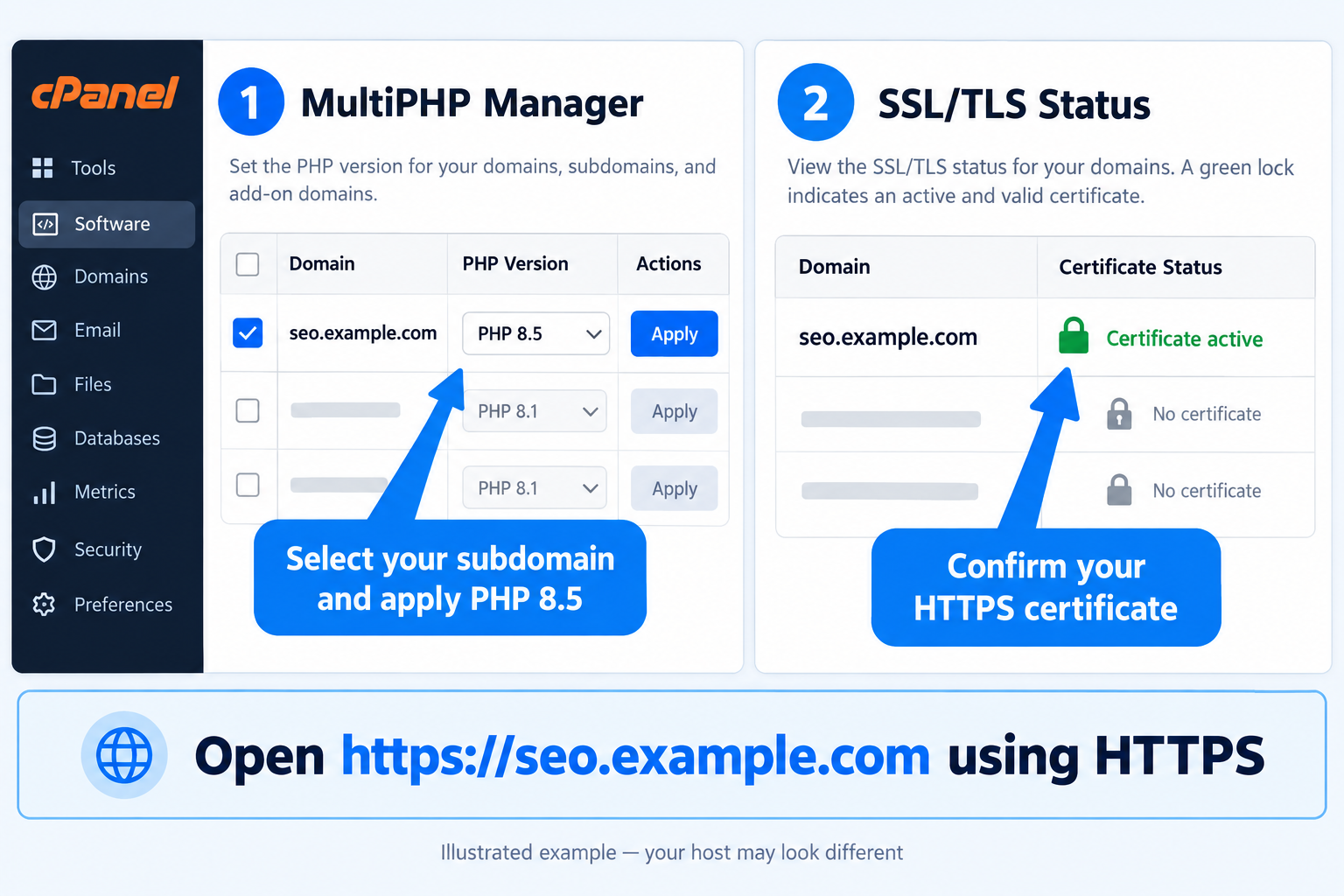
Illustrated cPanel steps selecting PHP 8.5 and checking the subdomain SSL certificate
Select PHP for the new subdomain. A valid HTTPS certificate is required before the launcher can run.
03

cPanel → Database Wizard

Create the database and its user

  1. Open Database Wizard (older label: MySQL Database Wizard).
  2. Enter seocc as the database suffix and click Next Step.
  3. Create a dedicated database user. Use Password Generator and save that password privately, then click Create User.
  4. Select ALL PRIVILEGES for this user on this database, then click Next Step.
Keep these three details:
  • Full database name, for example youruser_seocc.
  • Full database user, including its cPanel prefix.
  • The generated database password.

The wizard connects the user to the database. If you use Manage My Databases instead, add the user to the database and grant privileges there.

Use an empty database dedicated to SEOcc. The database password and your later SEOcc sign-in password are separate.

Official Database Wizard guidance ↗
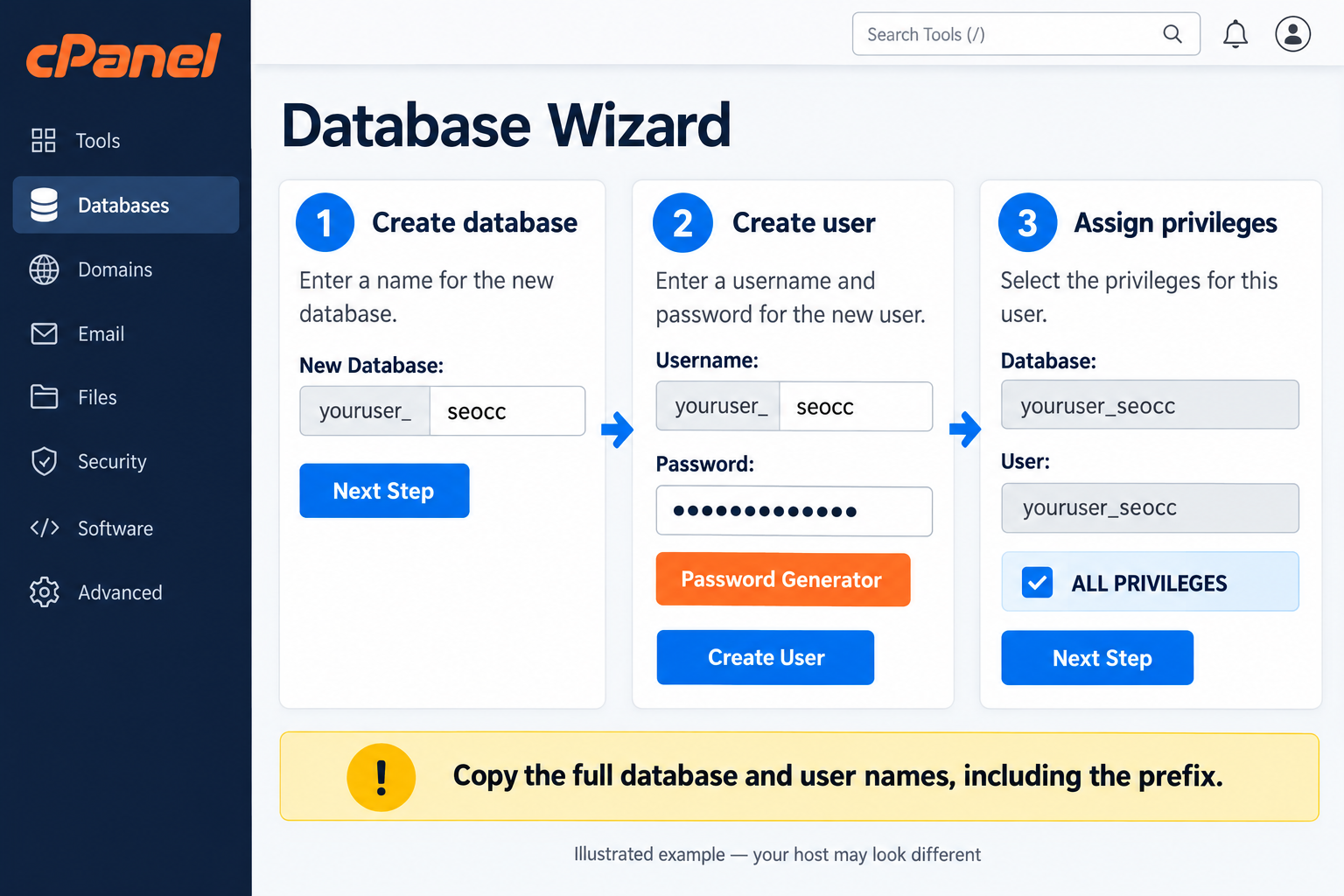
Illustrated cPanel Database Wizard with database creation, user creation and ALL PRIVILEGES
Copy the full names with their prefixes. Your account prefix will differ from this example.
04

Customer center → cPanel File Manager

Upload one file. Open it in your browser.

  1. Open the customer center, enter your purchase licence key, and choose Download guided installer.
  2. Copy the separate Installer setup code. The file and code expire in one hour; get a fresh pair if necessary.
  3. In cPanel Domains, find your subdomain’s document root. Open that exact folder in File Manager.
  4. The folder must be empty. If your host added a welcome page, confirm it is only the new subdomain’s placeholder and remove it there. Keep your main website files.
  5. Click Upload and upload installer.php directly into that folder.
  6. Open https://seo.example.com/installer.php. Paste the setup code, confirm your hosting backup and click Prepare my workspace.

The launcher checks file protection, downloads your eligible release and verifies the signed files. Leave the page open until it offers Continue to workspace setup.

The hosting protection check failed

No application files are installed when this check fails. Ask your host to enable Apache/LiteSpeed .htaccess rules and mod_rewrite, confirm a valid certificate, and allow PHP to make HTTPS requests to your subdomain. A proxy or firewall may need configuration.
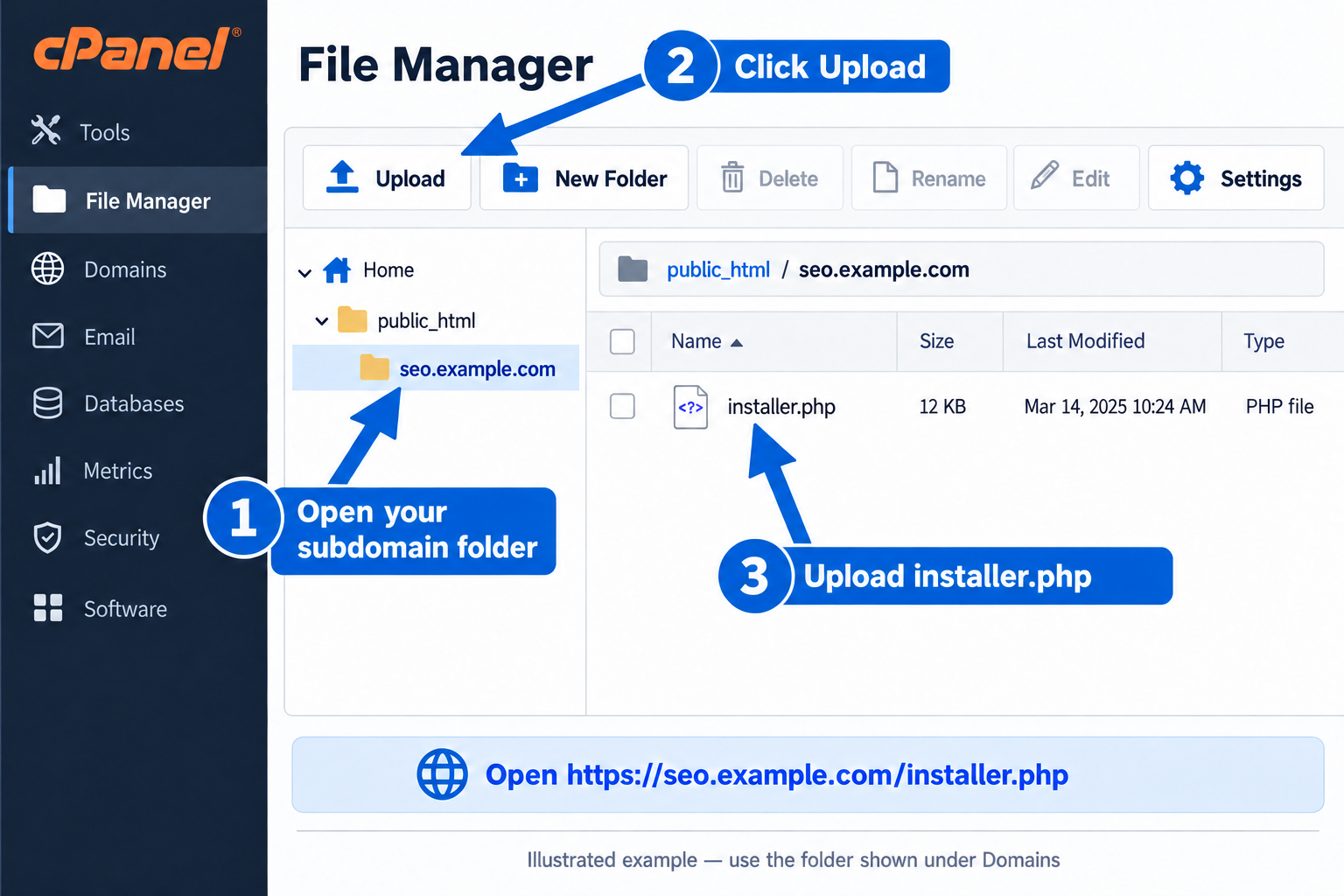
Illustrated cPanel File Manager showing the installer uploaded directly into the subdomain folder
The example folder sits under public_html; yours may be elsewhere. Always use the document root listed for your subdomain.
05

Your subdomain → SEOcc installation assistant

Create your workspace

  1. Welcome: review the hosting checks and click Continue.
  2. Site & access: confirm the detected HTTPS address. The launcher carries setup access into this browser, so you don’t copy another code.
  3. Database: paste the full database name, user and password. Keep localhost and port 3306 unless your host gave you different values.
  4. Your account: enter your name, email and a password of at least 12 characters. Name your first workspace.
  5. Review & install: confirm the details and choose your cron interval. Every five minutes is recommended if your host allows it. Click Install SEO Control Center and keep the page open.
06

cPanel → Cron Jobs

Turn on background jobs. Then sign in.

  1. Keep the installer’s completion page open. It shows your schedule and the command for this installation.
  2. In cPanel, open Cron Jobs. Choose the same interval you selected in SEOcc. For every five minutes: Minute */5; Hour, Day, Month and Weekday each *.
  3. Copy the command from the installer into cPanel’s Command field. Its application path is already correct. If your host uses a different PHP executable, ask for its PHP 8.5 command-line path.
  4. Click Add New Cron Job. Don’t add a duplicate job for the same installation.
  5. In File Manager, download the encryption key from the exact path shown on your completion page and keep an offline backup. Then remove the launcher and its .scc-installed.php marker.
  6. Sign in to SEOcc. Activate your purchase key under System → License. After the first cron run, check System → Health → Cron.

The wizard saves the cron interval automatically. There is no .env edit needed for this new-install flow.

Finally, configure System → E-mail and send a test email so invitations and password resets work.

Official cPanel cron guidance ↗
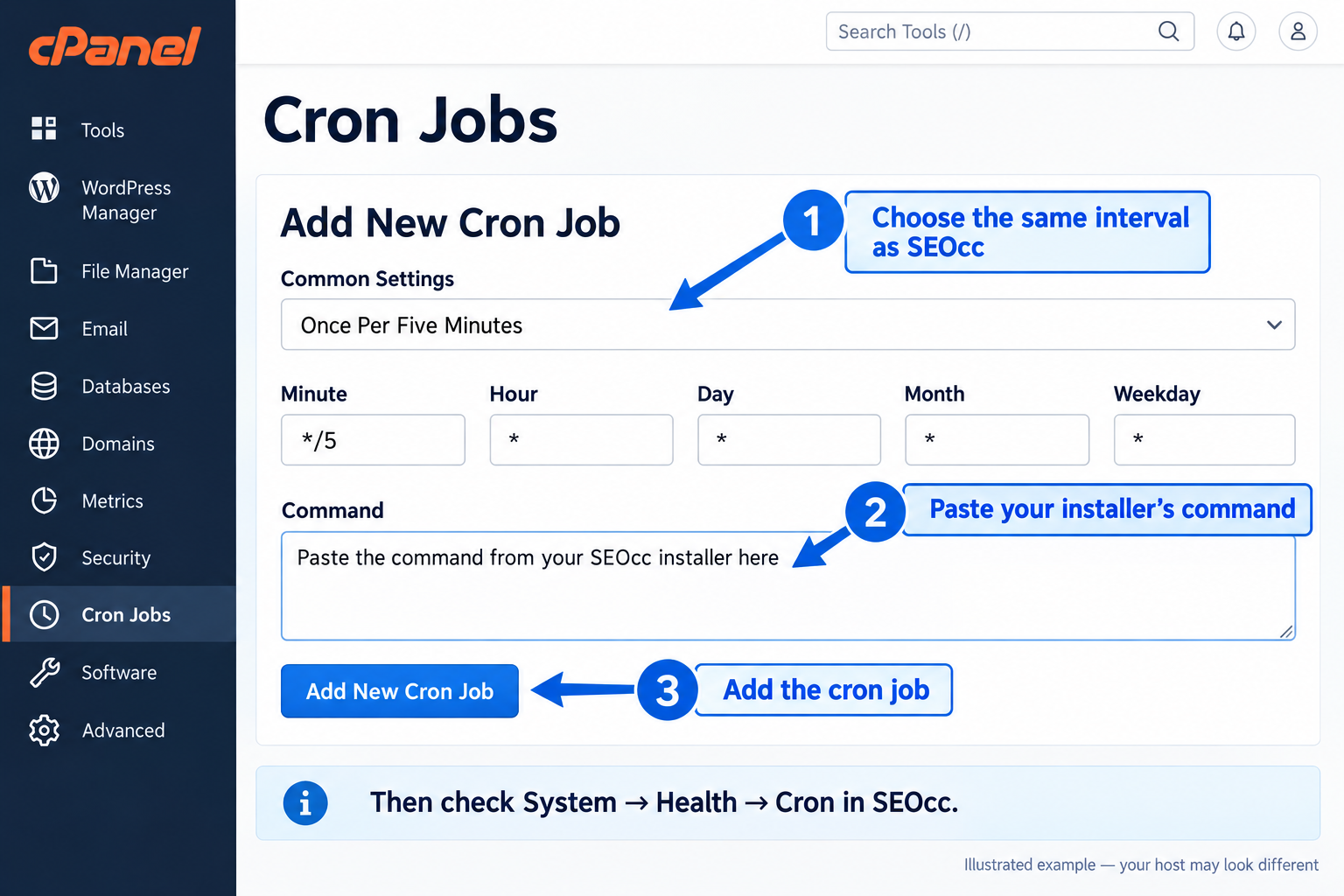
Illustrated cPanel Cron Jobs form with a five-minute schedule and a command copied from the SEOcc installer
Use the command from your completion page. It contains your installation’s real path.

Something needs attention?

Database connection failed

Check the full prefixed names, database password and user privileges. Check localhost with your host. The installer keeps non-password fields; enter passwords again before retrying.

The launcher expired or timed out

Download a fresh file and setup code. If no files were installed, retry in the same empty folder. If partial application files exist or you see an interrupted preparation message, keep the protection files and contact support before removing anything.

SEOcc is installed, but imports do not start

Check that the cron job exists, its schedule matches SEOcc and its PHP executable is version 8.5 or newer. Inspect System → Health → Cron after the next scheduled run.

I need to install from the full ZIP

The customer center still provides signed install packages. ZIPs can contain the historical seo-control-center wrapper folder. Use the release-specific manual guide, or contact support for help. The one-file installer is the recommended route for keeping the subdomain’s default folder.

Ask the community → · Read the full installation guide →

cPanel installation illustration