You do not need a development team to get started. Prepare compatible hosting, open the guided installer and create your workspace. SEO Control Center checks the essentials and shows you what to do next.
About 15 minutes on prepared, compatible cPanel hosting, following our guide. Account connections are separate.
A familiar hosting account is enough
Use a domain. Keep your own database.
Run SEOcc as its own application, for example at seo.yourdomain.com. Use your hosting control panel and file manager to prepare it, with no command-line installation.
Cron every five minutes or faster, at least 128 MB PHP memory and 500 MB free disk space.
Install self-hosted SEO software on cPanel
Four steps. One clear path.
You handle the hosting details once. The installer takes care of the application setup, then gives you a checklist to finish.
01Prepare hosting
HTTPS, PHP and an empty database.
02Get the application
Use the launcher or install ZIP.
03Follow the wizard
Checks, credentials and workspace.
04Finish and sign in
Background jobs, key backup and licence.
Let the launcher fetch SEOcc
Download the guided installer and its setup code from the customer center. Upload it into the empty folder cPanel created for your HTTPS subdomain. It checks hosting protection, then downloads and verifies your eligible release.
Continue into the wizard in the same browser. Keep your subdomain’s existing document root; the installer handles the application layout.
Upload and extract the install ZIP in your hosting home directory. Point your domain to the extracted application’s public folder, then open that domain to reach the same setup wizard.
SEOcc lives in its own folder, separate from your existing WordPress or other website.
Before uploading, back up your hosting account. Keep application files outside the public web root; only the public folder should be served.
Inside the actual installer
See what setup looks like.
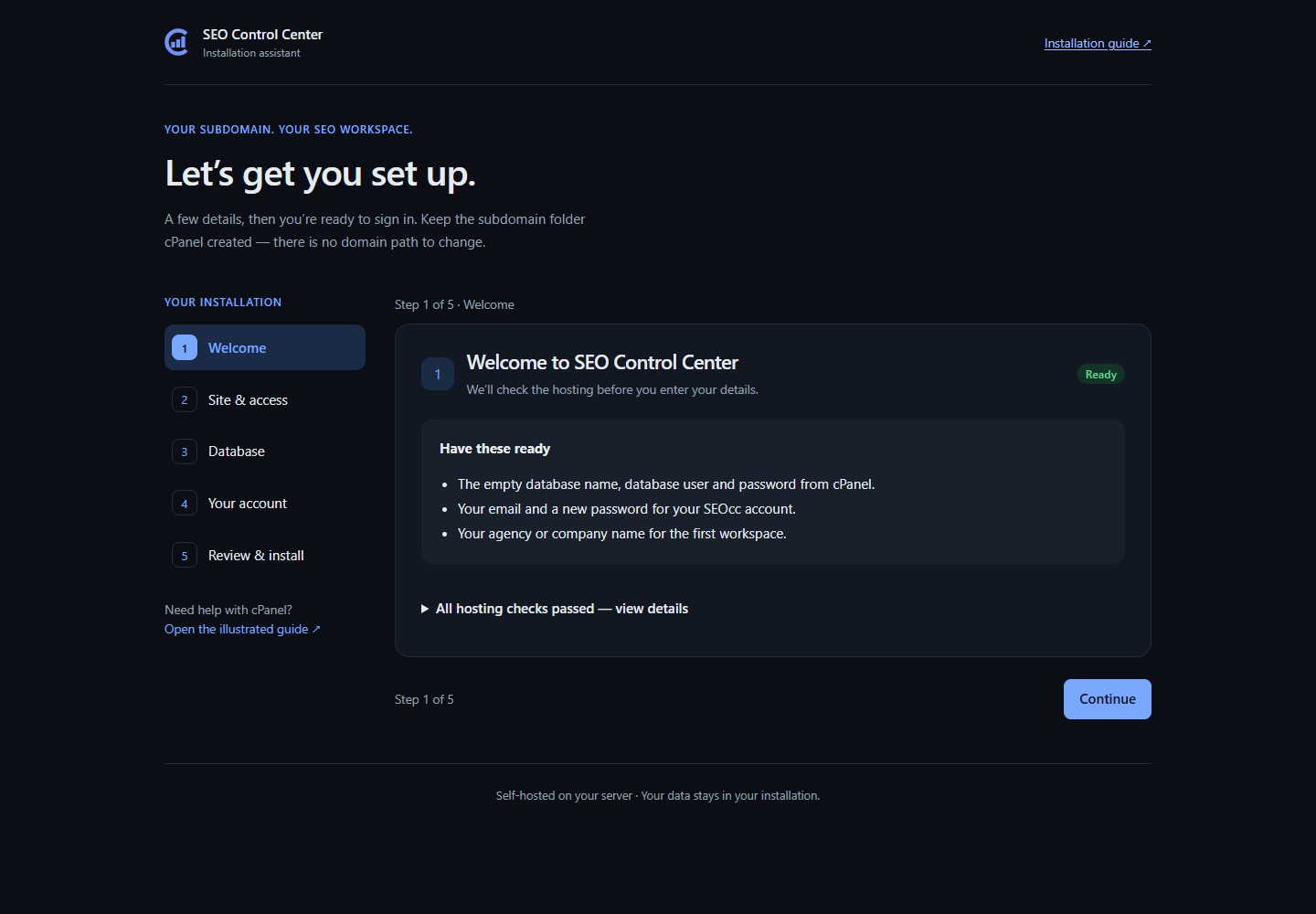
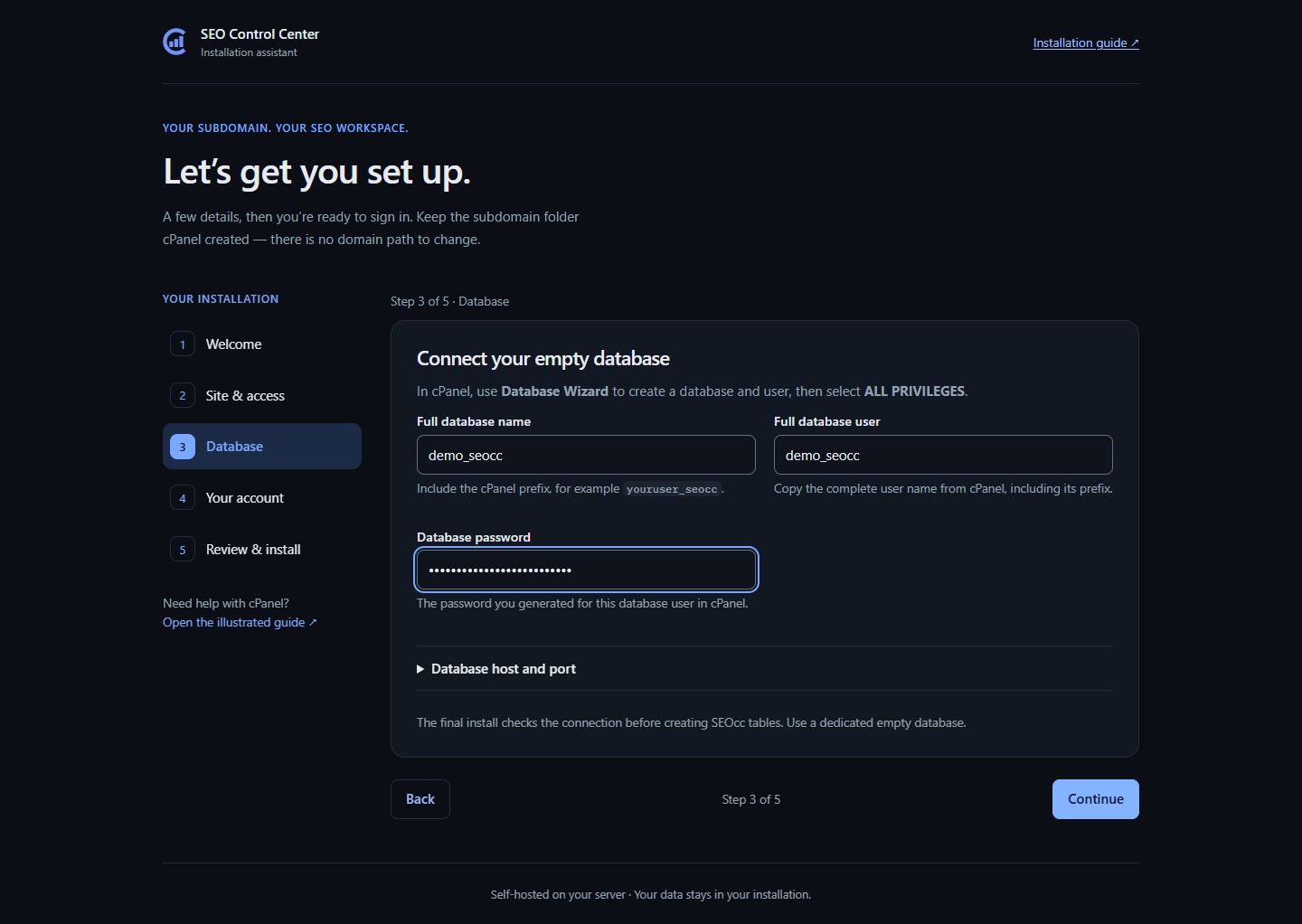
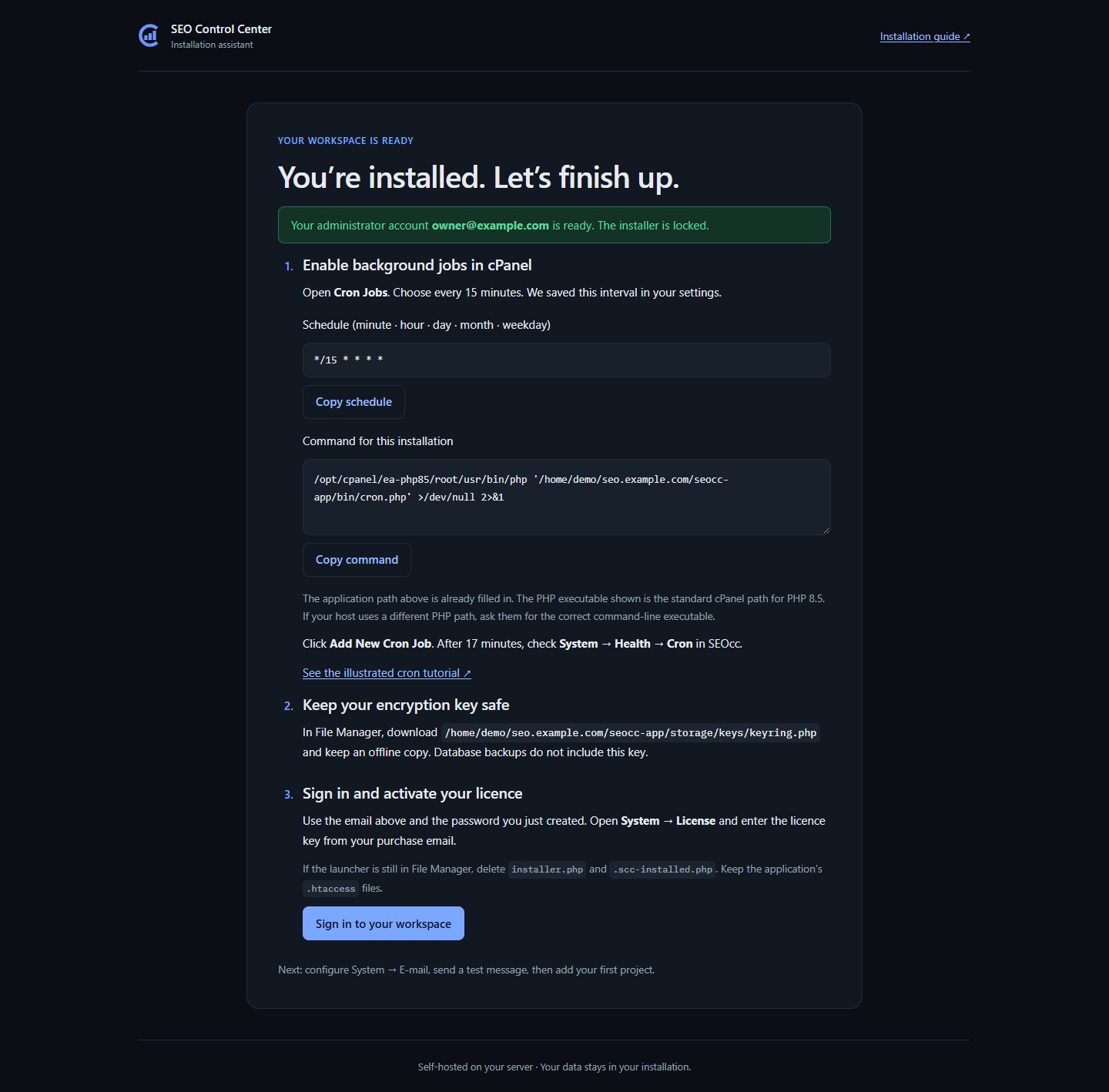
Five short steps, clear readiness checks and a useful finish screen. These are real SEOcc installer screens, rendered with fictional setup details and illustrative server checks.
01 · Check before you install
Know your hosting is ready.
The launcher checks private-file protection. The wizard checks your PHP version, required extensions and writable storage. If something needs attention, you can resolve it before installing.
Readiness results in one place.
The launcher carries setup access into this browser.
A private server key remains available as a fallback.
Your database. Your administrator. Your workspace.
Enter the database details from your hosting panel, choose your administrator account and name the first workspace. You do not need to edit application code.
Use your own subdomain and empty database.
Create the account you will sign in with.
Start with a workspace ready for your projects.
Continue in the same browser without copying a second code. Back and Continue keep each step manageable.
The completion screen provides the scheduled-job command and reminds you to save your encryption key. Add the job in cPanel, keep an offline copy of the key, then sign in and activate your licence.
Create a project and begin with site audits. Paid research and AI are optional connections, so you can build your workflow at your own pace.
Bring in your Google data
Your administrator creates a Google OAuth app once and saves its credentials in SEOcc. Then sign in with Google, approve read-only access and choose your Search Console property. Imports run in the background.
Allow extra time for the one-time Google Cloud setup; the guide walks you through it.
Connect your own funded DataForSEO account for paid research. Paste the API credentials, test the connection and set daily, monthly and per-request budgets.
You pay the provider directly, with no SEOcc markup.
Add your Claude or OpenAI API key, select a model and set workspace budgets. Ask AI can then help explain your stored SEO evidence and prepare next steps.
Provider API billing is separate from your SEOcc licence.
Every edition includes updates while your licence is active. Review the release in System → Updates and choose a convenient time to install.
SEOcc checks for releases
Daily checks find eligible releases. SEOcc downloads the package in the background and notifies you when an update is available. You can also check manually.
Packages are verified
SEOcc checks signatures and files before installation. Prefer a manual download? Upload the update ZIP through the same dashboard.
You choose when to install
The update uses maintenance mode and backs up the database before applying files and migrations. Keep your own file, database and encryption-key backups as well.
The update guide covers preparation and recovery if a release is interrupted. Update duration depends on your host and database.